
Walk into any school, training room, or boardroom today and you will hear two terms used almost interchangeably — interactive screen and interactive panel. Teachers ask for an interactive screen. Purchase committees specify an interactive panel. Vendors advertise both. Principals compare them as if they are different products.
So are they actually different? Is one better than the other? And which one should you buy for your classroom, office, or institution?
This guide answers all of it — with complete clarity, no jargon, and a clear recommendation at the end based on your specific use case.
💡 Raise Solutions supplies, installs, and provides AMC for interactive panels and smart display solutions for schools, colleges, and corporate offices across Vijayawada and Andhra Pradesh. Call +91 8522959096 for a free demo.
The Short Answer
An interactive screen and an interactive panel are the same product.
The terms are used interchangeably across the Indian education and corporate market. There is no meaningful technical difference between what a vendor calls an “interactive screen” and what another calls an “interactive panel” — they both refer to the same category of device: a large-format, touch-enabled flat display used in classrooms and boardrooms.
The confusion arises because different manufacturers, vendors, and regions use different terminology for the same thing. In government procurement documents, it is often called an “interactive flat panel display” or IFPD. In schools, it is called an interactive screen, smart board, or digital board. In corporate environments, it is called an interactive display or collaboration screen.
All of these terms refer to the same fundamental product — a large LED or LCD panel with a built-in touch layer, running Android or Windows, designed for interactive use in education or business environments.
However — and this is the important part — within this broad category, there are meaningful differences between products that matter enormously for your buying decision. The terminology is not what matters. The specifications are.
This guide will cut through the naming confusion and help you focus on what actually determines whether a display will serve you well for the next 8 to 10 years.
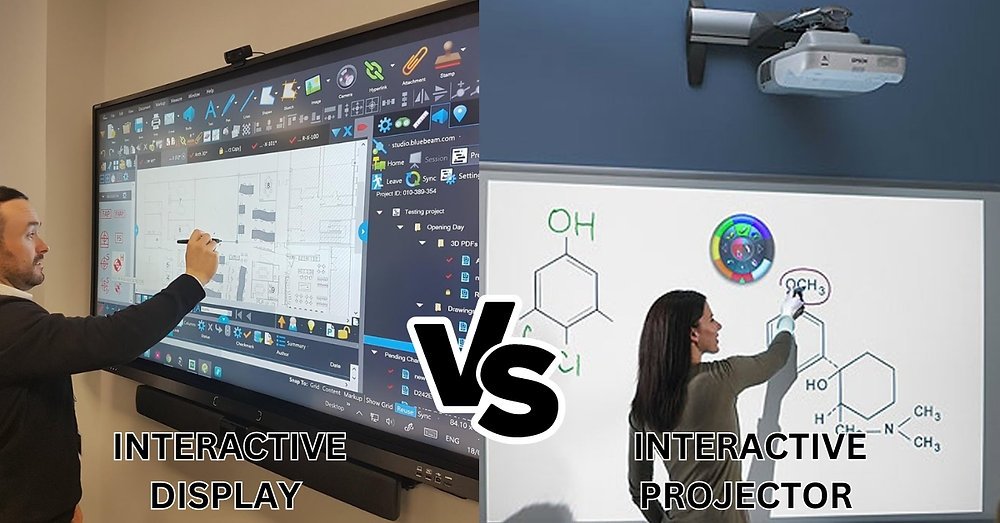
What is an Interactive Panel?
An interactive flat panel — also called an interactive display, interactive screen, or digital board — is a large-format LED or LCD display with:
- A built-in multi-touch layer (typically 20-point infrared touch)
- An embedded computer (Android, Windows, or both)
- A built-in whiteboard and annotation software
- Screen mirroring capability for wireless screen sharing
- Built-in speakers and microphone (on most models)
- A range of educational or collaboration software pre-installed
Size range: 55 inches to 110 inches diagonally
Resolution: 4K UHD (3840 × 2160 pixels) on all current-generation models
Touch technology: Infrared (IR) — most common. Capacitive on some premium models.
Operating system: Android 11 or higher on most current models. Some include a Windows OPS slot.
When someone says “interactive screen” in an education context — this is what they mean.
What is an Interactive Screen?
Exactly the same product. The term “interactive screen” is simply another name for the same device described above.
In some contexts, “interactive screen” is used more loosely to include:
- Older projector-based interactive whiteboard setups
- Touch-overlay screens added to regular displays
- Tablet-style touch displays under 40 inches
But in the context of school classrooms, college lecture halls, and corporate boardrooms — when someone asks for an “interactive screen” they invariably mean the same 65 to 86-inch LED flat panel that a vendor calls an “interactive panel.”
Where the Real Differences Actually Are
Since interactive screen and interactive panel mean the same thing, the real question is not terminology — it is which type of interactive display is right for your specific environment. Here is where genuine, important differences exist:
Difference 1 — Display Technology: LED vs LCD vs OLED
LED-backlit LCD panels — the vast majority of interactive displays available in India fall into this category. The LED backlighting illuminates an LCD layer to produce the image. Good brightness (350 to 500 nits), good colour accuracy, 4K resolution standard. This is what almost all brands — BenQ, ViewSonic, Samsung, LG, ZKTeco — sell in the Indian market.
OLED panels — each pixel generates its own light, producing perfect blacks and extremely vivid colours. Significantly more expensive. Available in limited models for premium corporate use. Not yet widely available in the 65 to 86-inch sizes used for classroom interactive displays.
Mini-LED panels — a newer LED technology with more precise backlighting zones, producing significantly better contrast than standard LED-LCD. Beginning to appear in premium interactive displays. Priced at a premium over standard LED.
For Indian schools and offices in 2026 — LED-backlit LCD is the correct, cost-effective choice. OLED and Mini-LED are premium technologies that do not justify their cost premium for classroom or boardroom interactive use.
Difference 2 — Touch Technology: Infrared vs Capacitive
Infrared (IR) touch is the most common touch technology in interactive displays. An array of IR LEDs and receivers around the frame of the display creates an invisible grid. When a finger or stylus breaks the IR beams, the touch position is detected.
Advantages of IR:
- Works with any object — finger, stylus, glove, eraser
- No degradation over time
- Supports 20-point simultaneous touch
- More affordable to manufacture
Limitations of IR:
- Slightly less precise than capacitive at the pixel level
- Can be affected by bright ambient light in some older implementations
- The IR frame adds some depth to the display bezel
Optical bonding / capacitive touch — found in premium displays. The touch layer is bonded directly to the display glass with no air gap, producing a more natural writing feel — like writing on glass rather than on a frame above the glass.
Advantages:
- More natural writing experience — preferred by teachers who write extensively
- Better parallax (the cursor appears exactly under the pen tip)
- Less affected by ambient light
Limitations:
- Significantly more expensive
- Typically stylus-only on some models (does not work with bare fingers)
For most school and corporate deployments in India — IR touch is perfectly adequate and what you will encounter in the vast majority of products at every price point. Optical bonding is a genuine upgrade for premium deployments where writing experience is the priority.
Difference 3 — Operating System: Android vs Windows vs Dual
Android-only interactive displays run a modified version of Android (Android 9, 11, or 13 depending on model). They have built-in whiteboard software, can install apps from the Google Play Store, and connect wirelessly to student or presenter devices.
Good for: Schools, coaching institutes, and presentations where the teacher uses the panel as the primary device.
Limitation: Cannot run Windows-native applications — AutoCAD, MS Project, Tally, or legacy software — without an external laptop or the optional Windows OPS module.
Windows OPS module — an add-on Windows PC that slides into a slot on the back of the panel. With OPS installed, the display becomes a full Windows computer — toggle between Android and Windows with a button press.
Good for: Engineering colleges, corporate offices, or any environment where Windows-specific software must run on the display itself.
Dual OS (Android + Windows built-in) — select premium models include both Android and Windows built into the display without a separate OPS module. More seamless but significantly more expensive.
For most Indian schools and colleges — Android 11 with optional Windows OPS is the right specification. Pure Android is sufficient for most classroom uses. OPS is only necessary when Windows-specific software needs to run on the panel directly.
Difference 4 — Brightness: 350 Nits vs 400 Nits vs 500 Nits
Brightness is measured in nits (candelas per square metre). For interactive displays used in rooms with windows and fluorescent lighting — which describes most Indian classrooms — brightness matters significantly.
350 nits — adequate for rooms with controlled lighting (curtains drawn, no direct sunlight on the screen)
400 nits — comfortable in most Indian classroom conditions
500 nits — clearly visible in bright rooms without needing to close curtains or dim lights
For schools in India where windows let in significant daylight and ceiling lights create ambient brightness — 400 nits minimum, 500 nits preferred. Displays below 350 nits will look washed out in typical Indian classroom lighting.
Difference 5 — Screen Size: Which Inch for Which Room?
This is possibly the most practically important specification and the most commonly under-specified. Read our complete 55 vs 65 vs 75 vs 86 inch interactive panel guide for the full breakdown — but the core rule is:
| Room Depth (Last Row to Screen) | Minimum Screen Size |
|---|---|
| Up to 5 metres | 65 inch |
| 5 to 7 metres | 75 inch |
| 7 to 9 metres | 86 inch |
| 9 to 12 metres | 98 inch or dual screens |
The most common buying mistake in Indian schools is specifying a 65-inch panel for a 30-student classroom that is 7 metres deep. Students in the back rows cannot read the content clearly. The panel becomes an expensive whiteboard replacement rather than an interactive learning tool.
Always measure your room depth before specifying size.
Difference 6 — Built-in Whiteboard Software Quality
Every interactive display comes with built-in whiteboard software — but the quality varies significantly between brands and price tiers.
Good whiteboard software includes:
- Smooth, low-latency writing (under 8ms response)
- Multiple pen types, colours, and thickness
- Import PDF, PPT, and image files for annotation
- Save and export annotated files to USB or cloud
- Screen recording (record the class for later review)
- Multi-user annotation (multiple students write simultaneously)
- Screen split (show two content sources side by side)
Average whiteboard software has most of these features but with slower response, limited file support, or poor export options.
BenQ’s EZWrite, ViewSonic’s myViewBoard, and Newline’s Workspace are consistently rated among the best built-in whiteboard platforms for Indian classroom use. Evaluate the software during a demo — not just the hardware.
Difference 7 — Eye Care Certification
Interactive displays used in schools run for 6 to 8 hours per day in front of students and teachers. Blue light emission and screen flicker — common in lower-quality panels — cause eye fatigue, headaches, and long-term eye strain.
Eye care certifications to look for:
- TÜV Rheinland Low Blue Light — confirms the panel meets blue light emission limits
- TÜV Rheinland Flicker-Free — confirms no detectable flicker at any brightness setting
- DisplayHDR certification — indicates good tone mapping and brightness management
BenQ is particularly strong on eye care certifications — they market specifically to the education sector with detailed eye care standards. For schools where children use the display daily — eye care certification is not a marketing feature, it is a genuine health consideration.
Interactive Panel vs Smart Board — Another Naming Confusion
While we are clearing up terminology — what about smart board?
“Smart Board” is technically a brand name owned by SMART Technologies — a Canadian company that pioneered interactive whiteboards in the early 2000s. Their original product was a large whiteboard surface connected to a projector — a completely different technology from today’s flat panel interactive displays.
However, “smart board” has become a generic term in India — teachers and administrators use it to mean any interactive display, regardless of brand or technology. It is the equivalent of calling all photocopiers “Xerox” machines.
In practice: when an Indian school asks for a “smart board” they almost always mean an interactive flat panel — the LED-backlit, 4K, touchscreen display covered throughout this guide. Not the original SMART Technologies projector-based whiteboard.
Interactive Panel vs Projector — The More Relevant Comparison
If you are coming from a projector-based classroom setup — the more useful comparison is interactive panel vs projector, not interactive screen vs interactive panel. Read our complete interactive flat panel vs projector guide for the full analysis.
The short version:
| Feature | Interactive Panel | Projector + Screen |
|---|---|---|
| Brightness in daylight | Excellent | Poor |
| Maintenance | Zero consumables | Bulb every 1–2 years |
| Touch interaction | Built-in | External device needed |
| Image quality | 4K, consistent | Degrades with distance |
| Setup time | 10 seconds | 2–5 minutes |
| 5-year total cost | Lower | Higher |
For any classroom used 5+ hours daily — the interactive panel is the superior investment over a 5-year horizon even at higher initial cost.
Interactive Panel vs Smart TV — Can I Just Use a Large TV?
Another common question — especially from buyers trying to reduce cost. Read our dedicated interactive flat panel vs smart TV guide for the complete comparison, but the key differences are:
A smart TV does not have:
- A touch layer — you cannot write on or interact with a TV
- Whiteboard software
- Multi-point touch input
- Educational or collaboration software
- The structural robustness for 8+ hours daily use in a classroom
- Warranty or support designed for institutional use
A Smart TV is a consumer entertainment device. An interactive panel is a professional educational and collaboration tool. They look superficially similar but are fundamentally different products designed for different purposes.
Which Brand Should You Choose?
Now that the terminology is clear — the real decision is which brand and model to select. Our complete guide on top 10 interactive panel brands in India covers every major brand with honest pros and cons. Here is the quick version:
For Schools and Educational Institutions:
- BenQ — best eye care, strongest classroom-specific software, widest service network
- ViewSonic — best price-to-performance, excellent myViewBoard software
- Newline — strong collaboration tools, good for active learning classrooms
For Corporate Offices and Boardrooms:
- Samsung — premium display quality, best for client-facing boardrooms
- LG — excellent for hybrid meetings and video conferencing setups
- Maxhub — built-in camera and mic, strong meeting room value
For Integrated Campus Deployments:
- ZKTeco — ideal when the campus already uses ZKTeco biometric attendance and access control — the interactive panel integrates natively into the existing ZKTeco ecosystem
For Budget-Conscious Deployments:
- ViewSonic — best quality at the lower price tier
- Hyundai — most affordable from a recognised brand name
Interactive Panel Price in India — 2026 Reference
For a complete, detailed price breakdown — read our interactive flat panel display price guide. Here is a quick reference:
| Size | Entry-Level Brand | Mid-Range (BenQ/ViewSonic) | Premium (Samsung/LG) |
|---|---|---|---|
| 65 inch | ₹65,000 – ₹85,000 | ₹90,000 – ₹1,40,000 | ₹1,60,000 – ₹2,50,000 |
| 75 inch | ₹85,000 – ₹1,10,000 | ₹1,20,000 – ₹1,90,000 | ₹2,00,000 – ₹3,20,000 |
| 86 inch | ₹1,10,000 – ₹1,50,000 | ₹1,60,000 – ₹2,50,000 | ₹2,80,000 – ₹4,50,000 |
| 98 inch | ₹2,50,000 – ₹3,50,000 | ₹3,50,000 – ₹5,00,000 | ₹5,00,000 – ₹8,00,000 |
The 5 Questions to Ask Before Buying
Once you have settled the terminology confusion — here are the five questions that actually determine the right interactive display for your needs:
Question 1 — What size does my room need?
Measure the room depth from the last row to the screen position. Apply the rule: 1 metre of depth requires 1 inch of screen diagonal. Never compromise on size to save cost.
Question 2 — How bright is the room?
Does your room have large windows? Does it have overhead fluorescent lights? If yes to either — specify 400 nits minimum, 500 nits preferred.
Question 3 — What operating system does your workflow need?
If everything runs in a browser or on Android apps — Android-only is fine. If your teachers need Windows-specific software — specify a panel with OPS slot.
Question 4 — What software will teachers actually use?
Request a live demo of the built-in whiteboard software. Have a teacher try writing on it. Check the responsiveness, the annotation tools, and the file import/export. The software experience is what determines daily adoption.
Question 5 — Who handles after-sales and AMC?
The panel will be used 250+ days per year for 8+ years. Who comes when the touch stops working? Who updates the firmware? Who provides a replacement during extended repairs? Confirm the local authorised service presence before signing the purchase order.
Frequently Asked Questions
Yes — completely. Both terms refer to the same product: a large-format LED display with built-in touch, Android OS, whiteboard software, and screen mirroring capability. Different vendors, regions, and industries use different terms for the same device.
Q: Is an interactive screen the same as an interactive panel?
Yes — completely. Both terms refer to the same product: a large-format LED display with built-in touch, Android OS, whiteboard software, and screen mirroring capability. Different vendors, regions, and industries use different terms for the same device.
Q: Is an interactive panel the same as a smart board?
In common Indian usage — yes. “Smart board” has become a generic term for interactive displays regardless of brand. Technically, “Smart Board” is a brand name owned by SMART Technologies for their original projector-based interactive whiteboard product — but in India the term is used generically for any interactive display.
Q: What is the difference between an interactive panel and an interactive display?
No meaningful difference. Interactive panel, interactive display, interactive flat panel, and interactive flat panel display (IFPD) are all names for the same category of product.
Q: What size interactive panel should I buy for a 30-student classroom?
For a typical 30-student classroom with 6 to 8 metres of depth — a 75-inch panel is the minimum recommended size. An 86-inch panel is strongly recommended if students sit more than 6 metres from the screen. Never install a 65-inch panel in a room where students sit beyond 5 metres from the screen.
Q: Can an interactive panel replace a projector?
Yes — and in most cases it should. Interactive panels are brighter, sharper, more durable, require zero maintenance consumables, and provide native touch interaction that projectors cannot. The higher initial cost of an interactive panel is offset within 3 to 5 years by eliminated projector bulb replacement costs and significantly better teaching functionality.
Q: How long does an interactive panel last?
With reasonable use and basic maintenance — 8 to 12 years. The LED backlight has a rated lifespan of 50,000 hours — at 8 hours per day, that is 17 years of use before the brightness drops to 50% of original. The touch layer and Android OS are the more likely limiting factors over time. An AMC plan ensures firmware updates and touch recalibration keep the panel performing well throughout its life.
Q: What is an IFP panel?
IFP stands for Interactive Flat Panel. It is the technical acronym for what is commonly called an interactive panel or interactive screen. See our complete IFP full form guide for detailed explanation of this terminology.
Why Choose Raise Solutions for Your Interactive Panel?
We have been supplying and installing interactive panels for schools, colleges, coaching institutes, and corporate offices across Andhra Pradesh. We are not a marketplace — we are a team of technology specialists who survey your space, recommend the right screen size and specification for your actual room, install it properly, train your teachers, and support you for the life of the product.
- ✅ Authorised dealer for leading interactive panel brands
- ✅ Free demo at your school or office — see it in your actual room
- ✅ Honest recommendation on size and specification for your budget
- ✅ End-to-end service — supply, wall mounting, Wi-Fi setup, teacher training, AMC
- ✅ Integration with existing systems — biometric attendance, CCTV
- ✅ ISO Certified | MSME Registered | NSIC Recognised
- ✅ Head office Vijayawada · Branches in Hyderabad, Bangalore, Pune, Mumbai
📞 Book Your Free Demo Today
Call: +91 8522959096
Email: info@raisesolutions.in
Website: raisesolutions.in
Visit: Nidamanuru Road, Poranki, Vijayawada, Andhra Pradesh – 521137
Tell us your room dimensions, number of students or participants, and budget — we will recommend the right interactive panel and arrange a free demo at your premises.
© 2026 Raise Solutions | All Rights Reserved | ISO Certified | MSME Registered | NSIC Recognised